| Tech | Name |
|---|---|
| Frontend Framework | Angular 7 |
| Language | Typescript (compiled to Javascript) |
| Styling (CSS) | Bulma (pure css framework) |
| Api Server | Reqres.in (Fake Api Json Responses) |
| Code Editor | Visual Studio Code |
| Interface Creator | json2ts.com - Converting Json Response to Typescript interfaces |
Please refer this official doc https://angular.io/guide/quickstart
Install node js (if you haven't)
To Create new App : ng new my-app
To Run the project: cd my-app and then ng serve -o
Download Bulma. Copy bulma.min.css file into src-assets folder
In styles.css file add the import
@import "assets/css/bulma.min.css";
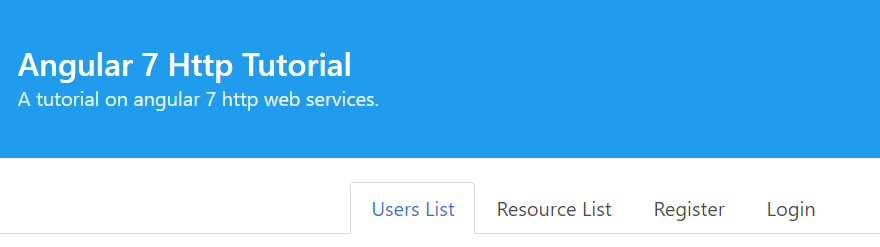
Add a Hero Section showing the Title and subtitle. (Ref : https://bulma.io/documentation/layout/hero/)
Add Menu Tabs. (Ref: https://bulma.io/documentation/components/tabs/)
Now our menu will look like this
Create Component UserList in pages folder : ng g c pages/userlist
Add it to Routes. ie Set User List Component as default starting component, in app-routing.module.ts.
const routes: Routes = [
{
path: '', // default path
component: UserlistComponent
}
];
Then add some columns for user list html page.
(Ref : https://bulma.io/documentation/columns/basics/)
Added a card component for user Ref : bulma.io/documentation/components/card/
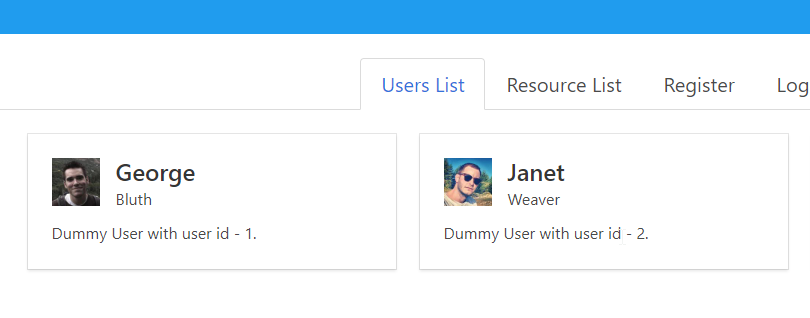
End Result will look like this
Ref : angular.io/guide/http
Our Api URL : https://reqres.in/api/users.
Import HttpClientModule, in app.module.ts
Create an api data service component - ng g s api
In api.service.ts file generated, inject the HttpClient in the constructor
constructor(private http: HttpClient) { }
Create function
getUserList() {
return this.http.get(this.UserListUrl);
}
Then add some columns for user list html page.
(Ref : https://bulma.io/documentation/columns/basics/)
Added a card component for user Ref : bulma.io/documentation/components/card/
End Result will look like this